Google Calendar as a Gantt chart
Google Calendar shows your days and weeks, not how the tasks of a project follow each other. Here is how to see the same events as a Gantt chart, without copying anything.
Does Google Calendar have a Gantt view?
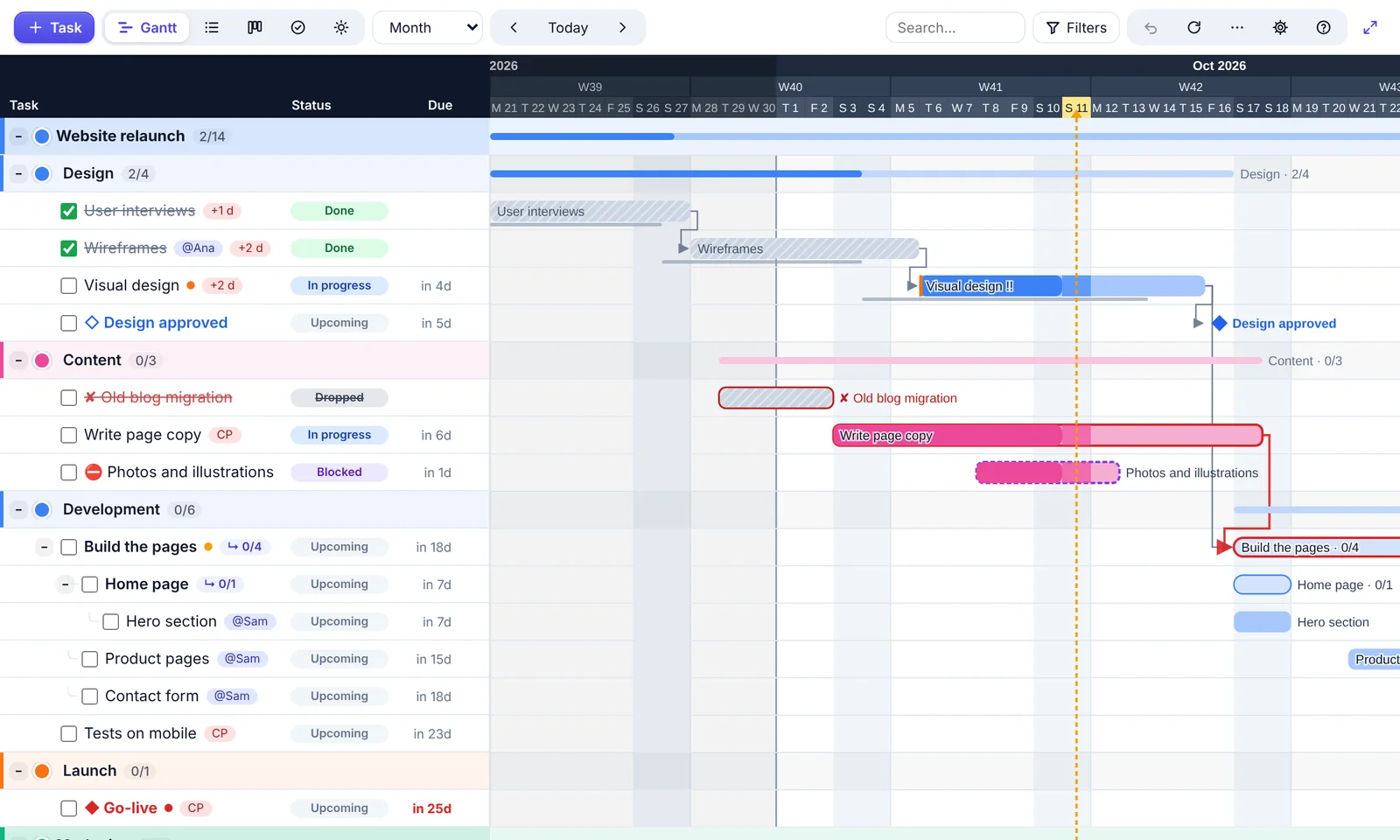
No. Google Calendar offers day, week, month, year and schedule views. They are good for appointments, but a project needs something else: one row per task, a bar from its start to its end, and arrows between tasks that depend on each other. That is a Gantt chart.
Three ways to get one
- Copy your events into a spreadsheet and draw the bars yourself. It works once, then the copy is out of date as soon as something moves in your calendar.
- The timeline view of Google Sheets. It draws bars from the rows of a sheet, not from your calendar. It is part of paid Google Workspace plans, not of free Google accounts.
- A tool connected to your calendar, such as CalGantt. It reads your events and your Google Tasks directly, and works in both directions: drag a bar and the event moves in Google Calendar.
With CalGantt, in two minutes
Choose where you want it:
- In your browser: open app.calgantt.com and sign in with Google (web version, in testing). Nothing to install. You can also look at the demo first, without an account.
- In Google Sheets: install CalGantt from the Google Workspace Marketplace, then open any sheet and click Extensions → CalGantt → Open Gantt chart.
- From Google Calendar: install CalGantt from the + in the side panel, then click its icon and Open CalGantt. It opens in a new tab.
Then tick the calendars and task lists to show. Your events appear as bars: drag one to move it, stretch it to change its length, and ↶ undoes any change.
Try it in your browser Install for Google Sheets
Watch the 2-minute tutorial
From the Google Workspace Marketplace to your first Gantt chart: install, allow access, open CalGantt from Google Calendar, then drag the bars.
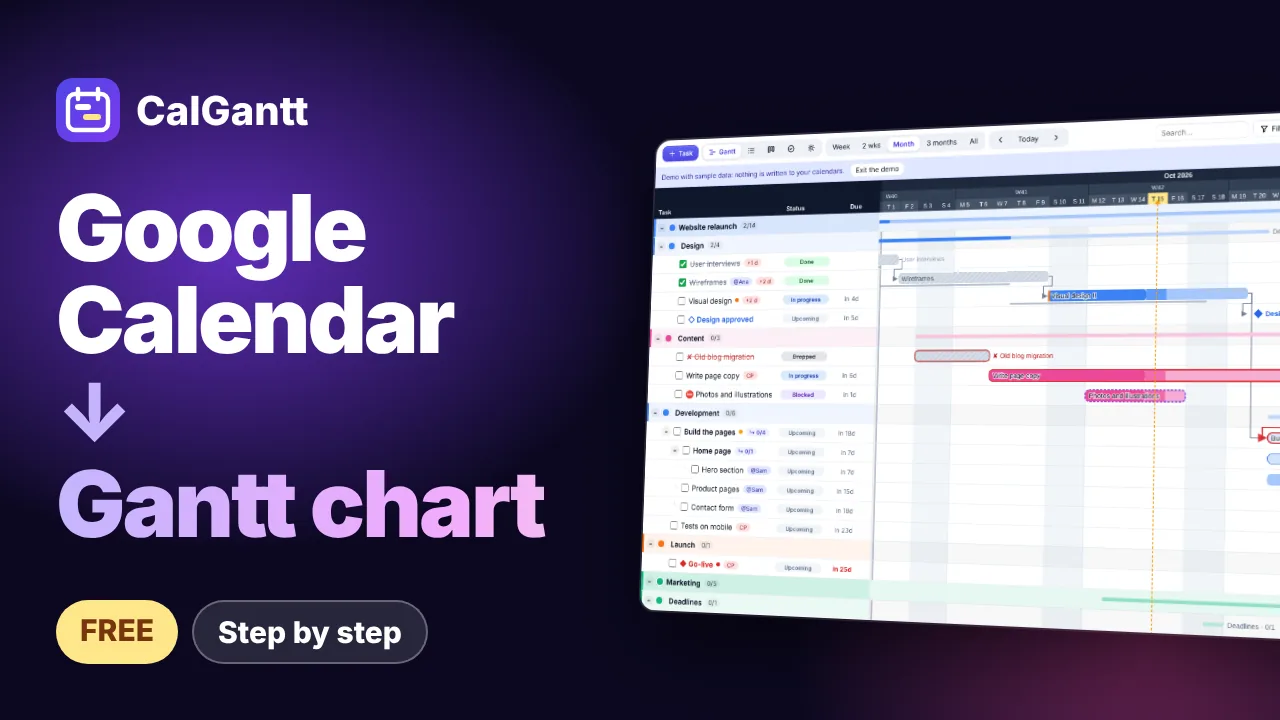
The video loads from YouTube when you click.
Tips for a clear plan
- Use all-day events for tasks that last several days: they become long bars and do not block your schedule.
- Group tasks with a category at the start of the title, between brackets:
[Design] Mock-ups. Each category becomes a group of rows. - Mark key dates with
DEADLINE:orMILESTONE:at the start of the title: they show as diamonds. - Link tasks by dragging from one bar to the next: when the first one moves, the next ones follow.
- Google Tasks count too: tasks with a due date appear next to your events.
Common questions
Is it free? Yes. Until 31 December 2026, every Pro feature is free for everyone. After that, the free plan works with 2 calendars or task lists and up to 40 open tasks, with no time limit.
Will it change my calendar on its own? No. CalGantt only changes an event when you move it, tick it or edit it, and it never sends emails to your guests.
Where does my data go? Between your browser (or Google Sheets) and Google only. CalGantt has no server and never receives your calendar. Details in the privacy policy.